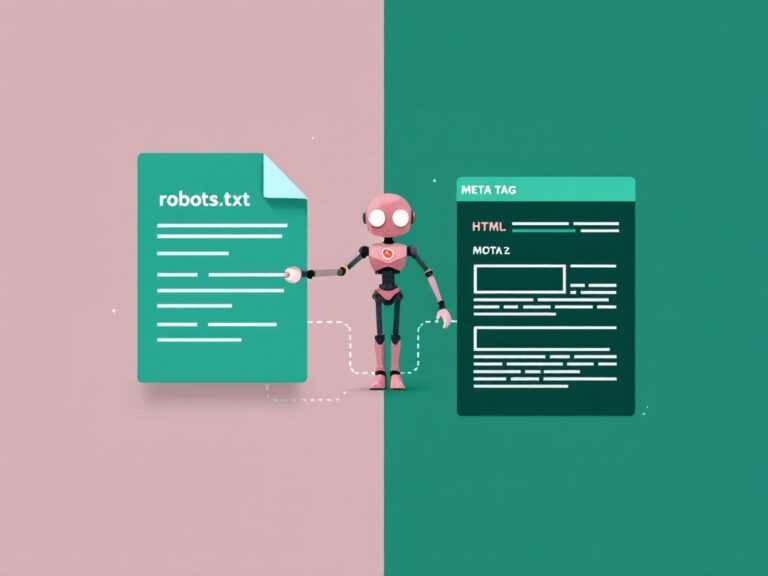
Robots.txt tells compliant crawlers which URLs they may request. It does not reliably prevent indexing or protect private content. This guide explains how to write rules, test their effects, and publish changes safely.
What is robots.txt?
Robots.txt is a plain text file that lives in the root folder of your website. Its job is to tell automated visitors — search engine crawlers, bots, and scrapers — which parts of your site they’re allowed to request and which parts they should leave alone.
When a well-behaved crawler like Googlebot arrives at your site, the first thing it does is look for a file at a very specific address:
https://yourdomain.com/robots.txtIf it finds one, it reads the rules before crawling anything else. If it doesn’t find one, it assumes everything is fair game and crawls whatever it can reach. That’s an important point people miss: no robots.txt file means “crawl everything,” not “crawl nothing.”
The name is short for “robots exclusion” and the format is governed by the Robots Exclusion Protocol, a standard that’s been around since 1994 and was finally formalized by the IETF in 2022. Every major search engine respects it.
Robots.txt is a request, not a lock. Good bots obey it. Malicious bots and scrapers can — and do — ignore it completely. Never use robots.txt to hide sensitive information; use passwords and proper access control for that.
Why robots.txt matters for SEO
You might be wondering why you’d ever want to stop search engines from crawling parts of your site. Isn’t more crawling better? Not always. Here’s why the file matters.
It protects your crawl budget
Search engines don’t crawl every page on every site on every visit. They allocate a rough budget of how many pages they’ll fetch from you in a given window. If a big chunk of that budget gets spent on pages that don’t matter — internal search results, filter combinations, admin URLs — your genuinely important pages get crawled less often. Robots.txt lets you steer crawlers away from the low-value stuff.
It keeps clutter out of the crawl path
Most sites generate a surprising number of throwaway URLs: session parameters, faceted navigation, print versions, staging directories. Blocking these keeps crawlers focused on the content you actually want ranked.
It points crawlers to your sitemap
Robots.txt is also the conventional place to announce where your XML sitemap lives, which helps search engines discover your important pages faster. We’ll cover that pairing in detail later.
It prevents server strain
On large or resource-heavy sites, aggressive crawling can slow things down for real visitors. Thoughtful robots.txt rules reduce unnecessary requests.
The flip side is the danger I opened with: because robots.txt is so powerful, a careless rule can prevent crawling of pages you want ranked. Respect it, test it, and change it deliberately.
Robots.txt syntax explained
The good news is that the syntax is genuinely simple. A robots.txt file is a list of rules, and each rule has two parts: who the rule applies to, and what they can or can’t do.
Here is the smallest useful example:
User-agent: *
Disallow: /private/
Read out loud, that says: “To every crawler (* means all of them), you are not allowed to crawl anything inside the /private/ folder.” Everything else on the site is allowed by default.
A few rules of the road for the format itself:
- Each directive goes on its own line.
- Directive names are not case-sensitive (
User-agentanduser-agentboth work), but the paths you list are case-sensitive. - Lines starting with
#are comments and are ignored by crawlers — use them to leave notes for yourself. - Paths are relative to the root, always starting with a
/. - A blank line separates one rule group from the next.
How Google selects and matches rules
Select the applicable user-agent group first
For Google, the most specific matching user-agent group takes precedence over the wildcard group. Rules in a Googlebot group do not automatically inherit the restrictions in User-agent: *. Multiple groups for the same matching user agent are combined. When adding a special group, repeat the restrictions that crawler must still follow.
User-agent: *
Disallow: /search/

User-agent: Googlebot
Disallow: /preview/
In this example Googlebot is blocked from /preview/, but the wildcard group’s /search/ restriction does not apply to it. If both paths should be blocked for Googlebot, put both rules in its group. Avoid a special group unless you need different behaviour.
Use the longest matching path; Allow wins a tie
Within the applicable group, Google uses the most specific matching path. Where Allow and Disallow have equal specificity, the less restrictive Allow wins. File order is not a reliable way to override a rule. For the standard WordPress admin example, /wp-admin/admin-ajax.php is more specific than /wp-admin/, so it remains crawlable.
Test wildcards, case and query strings
* matches a sequence of characters and $ anchors the end. Rules match the path and query string, not the URL fragment after #. Paths are case-sensitive. A pattern beginning /?sort= does not cover a parameter on every product or category path.
| Rule | Test URL path | Expected result from this rule |
|---|---|---|
Disallow: /search |
/searching-tips/ |
Blocked: the prefix is broader than /search/ |
Disallow: /*.pdf$ |
/report.pdf |
Blocked |
Disallow: /*.pdf$ |
/report.pdf?download=1 |
Not blocked by this rule: the URL does not end in .pdf |
Disallow: /Private/ |
/private/ |
Not blocked by this rule: case differs |
These are isolated examples; another rule can change the final result. Use the robots.txt generator and URL tester with the complete file and actual URL variants, including parameters. Treat its output as a rule check, not proof of what Google has fetched.
The common directives
You only need to understand four directives to handle 95% of real-world situations. Let’s take them one at a time.
User-agent
This line names the crawler a rule group applies to. The asterisk * is a wildcard meaning “all crawlers.” You can also target specific bots by name:
# Rules for everyone
User-agent: *
Disallow: /cart/

# A special rule just for Google's image crawler
User-agent: Googlebot-Image
Disallow: /private-photos/
Some crawler names worth knowing: Googlebot (Google’s main crawler), Bingbot (Microsoft Bing), Googlebot-Image, and increasingly the AI crawlers like GPTBot and ClaudeBot that fetch content for large language models.
Disallow
This tells the named crawler not to request URLs that begin with the given path. A few examples make the pattern clear:
Disallow: /admin/        # blocks the whole /admin/ folder
Disallow: /search        # blocks any URL starting with /search
Disallow: /*.pdf$        # blocks every URL ending in .pdf
Disallow:                # an empty Disallow blocks nothing — allows all
Notice the last one. An empty Disallow: value is the standard way to say “this crawler may access everything.”
Allow
Allow is the exception-maker. It’s most useful when you’ve blocked a whole folder but want to permit one specific thing inside it:
User-agent: *
Disallow: /wp-admin/
Allow: /wp-admin/admin-ajax.php
That blocks the entire WordPress admin area except the one file that themes and plugins legitimately need crawlers to reach. When rules conflict, most modern crawlers follow the most specific (longest) matching path, so the Allow wins here.
Sitemap
The Sitemap directive announces the full URL of your XML sitemap. Unlike the others, it isn’t tied to any user-agent — it’s a standalone line, usually placed at the bottom of the file:
Sitemap: https://yourdomain.com/sitemap.xmlYou can list more than one sitemap line if you have multiple sitemaps. Always use the full, absolute URL here, not a relative path.
A note on Crawl-delay
You may see Crawl-delay: 10 in older files, meant to tell a crawler to wait ten seconds between requests. Be aware that Google ignores this directive entirely — the former Search Console crawl-rate limiter is no longer available. Investigate server capacity and crawl behaviour instead. Bing and a few others still honor it, so it’s not useless, just misunderstood.
WordPress robots.txt examples
WordPress is where most people meet robots.txt for the first time. By default WordPress generates a small virtual file for you, but the moment you want real control you’ll want your own. Here’s a sensible, safe starting point for a typical WordPress site:
User-agent: *
Disallow: /wp-admin/
Allow: /wp-admin/admin-ajax.php
Disallow: /?s=
Disallow: /search/

Sitemap: https://yourdomain.com/wp-sitemap.xml
What each line is doing:
Disallow: /wp-admin/keeps crawlers out of the dashboard.Allow: /wp-admin/admin-ajax.phpre-opens the one file plugins need.Disallow: /?s=and/search/stop internal search-result pages from being crawled — these are classic crawl-budget wasters.- The
Sitemapline points to WordPress’s built-in sitemap.
Notice what’s not here. You’ll sometimes find old tutorials telling you to block /wp-content/ or /wp-includes/. Don’t. Modern Google needs to fetch your CSS and JavaScript from those folders to render and understand your pages. Blocking them can actively hurt your rankings.
Shopify robots.txt examples
Shopify generates robots.txt automatically. Keep the platform defaults unless you have identified a specific crawling problem. If you customize robots.txt.liquid, preserve the default groups and add the narrowest necessary change using Shopify’s current documentation. A fragment copied without its surrounding Liquid loop may not work. Preview the rendered public robots.txt and test product, collection, asset and checkout URLs before relying on the change.
WooCommerce robots.txt examples
WooCommerce runs on top of WordPress, so you get full control again — and a store adds a few URLs worth managing. Cart, checkout, and account pages hold nothing a search engine needs to index, and blocking them keeps crawlers on your products and categories:
User-agent: *
Disallow: /wp-admin/
Allow: /wp-admin/admin-ajax.php
Disallow: /cart/
Disallow: /checkout/
Disallow: /my-account/
Disallow: /*add-to-cart=*
Disallow: /?orderby=
Disallow: /?filter_*

Sitemap: https://yourstore.com/wp-sitemap.xml
The two lines to pay attention to are the parameter blocks. /*add-to-cart=* stops crawlers from following those “add to cart” action links, and /?orderby= and /?filter_* keep them out of the endless sorted-and-filtered variations of your shop pages. Those parameter URLs can multiply into thousands of near-identical pages — exactly the kind of thing that drains crawl budget on a busy store.
One caution specific to stores: never block /product/ or your shop and category pages. It sounds obvious written down, but it’s a mistake I’ve seen happen when someone copies an overly aggressive rule set from a forum.
Common mistakes and how to avoid them
Most robots.txt disasters come from a small handful of mistakes. Here are the ones worth burning into memory.
1. Accidentally blocking the whole site
The single most damaging line in existence:
User-agent: *
Disallow: /
That forward slash means “the root and everything under it.” Do not leave this rule on a public site you want crawled. For private staging environments, use authentication; robots.txt is not access control. If your traffic ever falls off a cliff for no obvious reason, this is the first thing to check.
2. Using robots.txt to hide a page from search results
This is the most common misconception in all of SEO. Blocking a URL in robots.txt stops crawling, but it does not guarantee the page stays out of Google’s index. If other sites link to that URL, Google can still list it in results — just without a description, showing “No information is available for this page.” To truly keep a page out of search, use a noindex meta robots tag and allow crawling so Google can see the tag. More on that difference below.
3. Blocking CSS and JavaScript
Google renders pages like a browser does. If you block the resources it needs to render — stylesheets, scripts, fonts — it sees a broken version of your page and may judge it poorly. Let crawlers reach your assets.
4. Getting case wrong
Paths are case-sensitive. Disallow: /Blog/ will not block /blog/. Match your real URLs exactly.
5. Forgetting the file after a site migration
When you move from staging to production, the staging robots.txt often comes along for the ride, complete with its Disallow: /. Migration checklists exist for a reason — put “review robots.txt” near the top of yours.
How to test a robots.txt file
1. Save a baseline and choose test URLs
Copy the current file before editing. List URLs that must stay crawlable: the homepage, a recent article, a category, an image, a stylesheet and a script. Add examples of the paths you intend to block. Include both trailing-slash and parameter variants where they exist.
2. Change one rule and check its scope
Use the robots.txt generator and URL tester to create or inspect the full rule set. Test the relevant user agent against both your allowed and blocked URL samples. Check custom user-agent groups separately, rather than assuming the wildcard group covers them.
3. Publish at the correct origin
Serve the file at /robots.txt on the correct scheme, hostname and port. A subdomain is a separate origin. Verify the response is the intended plain text, not a login page, challenge page, HTML error or stale cached file. For WordPress, follow the WordPress robots.txt setup and verification steps.
4. Verify the live file and Google’s fetched version
Repeat the same URL tests against the published text. In Search Console, review the robots.txt report and inspect an important URL. Distinguish the last indexed result from a live test. If a change should restore crawling, watch for a subsequent fetch; publishing does not instantly update Google’s cached version or guarantee indexing.
5. Keep a rollback copy
If a new rule blocks a required page or resource, restore the previous file and recheck the public response. Record the rule, publication time and affected URLs so later traffic changes can be investigated against evidence.
Troubleshooting blocked crawling
Robots rule or server response?
A rule marked Disallow is different from a page returning 403, 429 or 5xx. Inspect the page response and robots.txt separately. A browser challenge does not prove that verified Googlebot gets the same challenge; ask hosting support to check logs for verified crawler traffic, URL, time and response status.
Missing file or failed fetch?
Google normally treats a robots.txt 404 as no robots restrictions. Server errors, network failures and rate limiting are different and can interrupt crawling; investigate them rather than assuming the file is simply absent. An HTML page returned with HTTP 200 is also not evidence that the intended rules were served.
Crawlable but still not indexed?
Check meta robots, X-Robots-Tag, canonical selection, internal links and content usefulness. Read robots.txt versus noindex before changing a crawl rule to solve an indexing problem. Use the Meta Tag Analyzer to inspect page-level directives, then check HTTP headers separately. Review how to create and submit an XML sitemap without expecting a sitemap submission to force indexing.
Robots.txt vs meta robots
This is the distinction that separates people who understand crawling from people who guess at it. Robots.txt and the meta robots tag sound similar and are constantly confused, but they do genuinely different jobs.
| Robots.txt | Meta robots tag |
|---|---|
| A file at your site root | A tag inside a page’s HTML <head> |
| Controls crawling (whether a bot fetches the URL) | Controls indexing (whether a fetched page appears in results) |
| Applies to files, folders, and URL patterns | Applies to a single page |
| Cannot reliably remove a page from the index | Can remove a page from the index with noindex |
Here’s the practical takeaway: to keep a page out of Google, use noindex, and do not block it in robots.txt. Those two instructions fight each other — if you block crawling, Google never fetches the page, so it never sees the noindex tag telling it to drop the page. The meta tag lives in the page’s head like this:
<meta name="robots" content="noindex, follow">Use robots.txt to manage crawling at scale (whole folders, parameters, budget). Use meta robots to control the indexing of specific pages. You can check what meta tags a page is actually serving with the ToolBrainy Meta Tag Analyzer.
Robots.txt and XML sitemaps
Robots.txt and your XML sitemap are two halves of the same conversation. Robots.txt tells crawlers where not to go; the sitemap tells them where you’d most like them to go. They work best together.
Linking your sitemap from robots.txt is a small step with a real payoff — it helps search engines discover your important URLs without waiting to stumble across them through internal links:
User-agent: *
Disallow: /wp-admin/
Allow: /wp-admin/admin-ajax.php

Sitemap: https://yourdomain.com/sitemap.xml
One rule that catches people out: never list a URL in your sitemap that you’ve blocked in robots.txt. You’d be sending a mixed signal — “please crawl this” and “don’t crawl this” about the same page. Keep the two files consistent. If you need to build or refresh your sitemap, the ToolBrainy Sitemap Generator produces a valid XML file you can point to from this exact directive.
Crawl budget considerations
“Crawl budget” is one of those phrases that sounds intimidating and turns out to be simple. It’s just the number of pages a search engine is willing to crawl on your site within a given timeframe, shaped by two things: how much crawling your server can handle without slowing down, and how much Google actually wants to crawl based on your site’s importance and freshness.
For most small sites — a few hundred pages — crawl budget is a non-issue. Focus first on useful content, internal links, indexability, and server reliability; a small site is not guaranteed to have every URL crawled. It starts to matter when you have:
- Tens of thousands of URLs or more.
- Lots of auto-generated pages (faceted navigation, filters, calendars, internal search).
- A large store with countless product-variant and sort-order URLs.
On sites like those, robots.txt becomes a budget tool. By blocking the low-value, near-duplicate, and infinite-URL traps, you concentrate crawling on the pages that earn you traffic. Think of it as clearing the path so crawlers spend their limited time on your best work rather than wandering through filter combinations no human will ever search for.
A few habits that protect crawl budget: block internal search results, block obvious parameter clutter, keep your sitemap clean and current, and fix or redirect long chains of broken and redirected URLs so crawlers aren’t chasing dead ends.
Frequently asked questions
Where should the robots.txt file be located?
It must live in the root directory of your domain and be reachable at https://yourdomain.com/robots.txt. Crawlers only look in that exact spot — a robots.txt file placed in a subfolder is ignored. Each subdomain needs its own file too; blog.yourdomain.com uses its own robots.txt, separate from the main domain.
Do I even need a robots.txt file?
Not strictly. If you’re happy for search engines to crawl your entire site, you can skip it and nothing breaks. That said, having one is good practice — it lets you point to your sitemap, block low-value URLs, and gives you a place to make crawl decisions later. A simple, permissive file is better than none.
Will robots.txt keep my page out of Google?
No, not reliably. Blocking a URL stops crawling, but the page can still appear in search results if other sites link to it. To truly keep a page out of the index, use a noindex meta robots tag and allow crawling so Google can read that tag.
How often do search engines check robots.txt?
Google typically caches your robots.txt for up to 24 hours, so changes usually take effect within a day. If you’ve made an urgent fix, you can prompt a faster re-fetch through Google Search Console rather than waiting.
Can I block AI crawlers like GPTBot in robots.txt?
Yes. AI crawlers that respect the standard — such as GPTBot and ClaudeBot — read robots.txt like any other bot. Add a rule group naming the crawler and disallow what you want. Keep in mind this only works for bots that choose to obey; it isn’t an enforceable block.
What happens if my robots.txt has a syntax error?
Crawlers are fairly forgiving and will ignore lines they can’t parse, applying the rest. The danger is subtler: a malformed rule might silently fail to block what you intended, or an overly broad one might block more than you meant. That’s exactly why testing and validating before publishing is worth the two minutes.
Bringing it all together
Robots.txt rewards a little bit of care and punishes carelessness, which is why it’s worth understanding properly rather than copying a random file off a forum. Remember the essentials: it controls crawling, not indexing; an empty file or a robots.txt 404 generally places no robots exclusion restrictions on crawling; a lone Disallow: / can hide your whole site; and it should always be kept in sync with your XML sitemap.
Start simple. Block the genuinely useless URLs — admin areas, internal search, cart and checkout on stores — point to your sitemap, and leave your real content and assets fully crawlable. Test the file, watch Search Console for a week, and adjust only when you have a specific reason to.
Do that, and this tiny text file becomes exactly what it’s meant to be: a quiet, reliable doorman that sends crawlers straight to your best pages and keeps them out of the clutter. If you’d rather skip the hand-editing, the free Robots.txt Generator builds a valid file for you in seconds, and pairing it with the Sitemap Generator, Meta Tag Analyzer, and SERP Preview gives you a complete, no-signup technical-SEO toolkit to get the rest right too.
Reference documentation
Google robots.txt specification covers rule matching, response handling and caching. Check crawler-specific documentation before applying Google behaviour to another bot.
Editorial note: Updated September 29, 2026 with AI assistance. Instructions were reviewed against the relevant tool implementation and documentation; examples are illustrative rather than claims of personal experience.
Handy tools for this topic
Free online tools, no signup
Every ToolBrainy tool runs right in your browser — no accounts, no watermarks and no limits. Compress a PDF, generate a strong password, convert an image and plenty more.