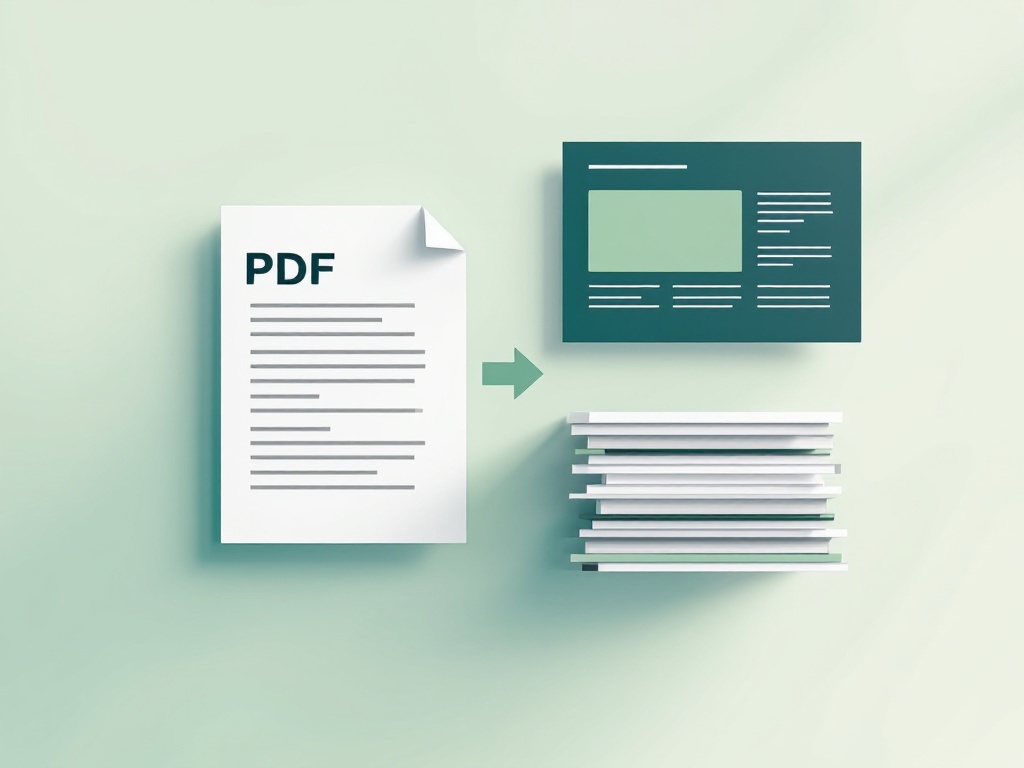
To convert a PDF to PowerPoint with ToolBrainy, select your PDF, click Convert to PowerPoint, and download the PPTX. Each page becomes an image on a slide: you can add annotations, but the original text is not editable.
The short answer
Use an image-based conversion when you want to present or annotate an existing document. Rebuild slides from extracted text when you need editable paragraphs, charts, accessible reading order or a new design. Conversion speed and appearance depend on the document, quality setting and device; inspect the downloaded deck before a meeting.
Prepare your PDF
Select only the pages your audience needs
Use the PDF splitter to extract selected PDF pages before conversion. A short deck is easier to review and consumes less browser memory. Work from a copy so you retain the original.
Check orientation, quality and file size
Open the source and inspect small text, scanned pages and unusual orientations. If processing is slow, try fewer pages first. You can compress a PDF before conversion, but compression may reduce clarity; compare results rather than assuming it improves every file. Our guide to PDF compression and quality trade-offs explains what to review.
Method 1: Use a free online PDF to PowerPoint converter
Choose files and review their order
- Open the PDF to PowerPoint converter and select Choose PDF.
- Select one or more PDFs. Review the file list before converting; pages are processed in file-list order and then in their original page order.
- Choose the available output-quality setting. Higher image quality can produce a larger presentation.
- Click Convert to PowerPoint and keep the browser tab open until processing finishes.
- Download the PPTX and open it in your presentation software. Check page count, order and legibility.
Understand the output
A 12-page input produces 12 image-based slides. Multiple PDFs are combined into one deck. The first processed page sets the slide dimensions for the entire deck; subsequent pages are proportionally fitted and centred, so mixed page sizes can leave margins. The tool renders pages to JPEG images rather than preserving vector objects, live text or interactive PDF features. Selected files are processed in your browser without being uploaded to ToolBrainy’s servers.
Method 2: Convert inside PowerPoint itself
Rebuild editable slides from selectable text
Open the PDF in a reader, select a short passage, copy it, and paste it into a text box in your slide template. Recreate headings and lists, check characters and line breaks, and rebuild important charts from their underlying data. This is manual reconstruction, not automatic conversion of PDF objects.
Embedding a PDF is different
Some desktop PowerPoint versions support Insert → Object → Create from file. This embeds or links a PDF object; it does not turn all its pages into editable slides. Availability and playback depend on the platform and installed software, so test on the presenting computer. PowerPoint itself may require a licence.
Method 3: The Google Slides route
- Create the PPTX using the converter, then upload it to Google Drive and open it with Google Slides.
- Review the imported pages, add text boxes and speaker notes, and make any needed layout adjustments.
- To return to PowerPoint, choose File → Download → Microsoft PowerPoint (.pptx), then inspect the exported file.
This route normally requires a Google account and uploads the presentation to Google’s service. The original page images remain images; opening them in Slides does not make their text editable. For sensitive documents, follow your organization’s rules for cloud storage.
Which method should you pick?
- Present the existing document: convert to image-based PPTX.
- Edit the wording or create accessible slides: extract and proofread text, then rebuild in a slide template.
- Collaborate in Google Slides: upload the PPTX if cloud storage is appropriate for the document.
Can you edit the text after converting?
This is the question that trips people up, so here is the straight answer for our converter: no, and it is a deliberate trade-off. Every PDF page is rendered as a high-resolution image and placed on its own slide. This usually retains the overall visual layout — but it also means the words are part of the picture. You cannot click into a paragraph and retype it.
This is true regardless of how the PDF was made. A PDF exported straight out of Word behaves exactly the same as one scanned from paper; both end up as images on slides.
What you can do is add your own text boxes, shapes, arrows and callouts on top of each slide. For plenty of real jobs — annotating a report, presenting from an existing document, walking a client through a proposal — that is all you actually need.
If you genuinely need the original words as editable text, you have two options. If the PDF has selectable text, copy it straight out and paste it into your own slide template (Method 2). If it is a scan with no selectable text at all, convert the needed PDF pages to images, then use our free OCR tool to extract their words, then paste them in.
Create editable slide content from scans
Convert the required PDF pages to images
The OCR tool accepts image files, not a PDF directly. First convert PDF pages to JPG, then choose the image containing the text you need.
Extract and proofread the text
Use Image to Text to extract text from an image. Choose the correct language and run extraction. Compare the result with the source, especially names, dates, numbers, punctuation and tables. OCR does not reliably reconstruct the original layout.
Build a slide that can be read and edited
Paste the checked text into slide text boxes. Use a descriptive title, short paragraphs and a logical reading order. Add useful alternative text to meaningful images. A screenshot containing text is not an accessible substitute for actual slide text.
Check the finished presentation
- Compare input page count with output slide count and confirm file order.
- Inspect the first, last and most detailed pages at presentation size.
- Review mixed portrait and landscape pages for margins and clipped content after any manual resizing.
- Check that annotations, links and forms you need have been recreated: a page image does not retain their original interactivity.
- Open the deck on the presenting device before sharing. Keep the original PDF as a reference.
Publishing a PDF or presentation on a website
Local conversion does not publish your files. If you later upload a PDF to a public website and want it excluded from Google, read how to keep a published PDF out of Google with X-Robots-Tag. For confidential material, use access control rather than search-engine directives.
Tips for the cleanest result
- Compress bloated PDFs first. If the file is huge or slow to process, run it through a PDF compressor before converting.
- Split long documents. Turning a 60-page report into slides rarely reads well — pull out only the pages you need.
- Review font rendering before presenting. Because each page is an image, the rendered typefaces are baked in and cannot be substituted on another machine — one genuine advantage of the image approach.
- Convert, then polish. Treat the converted deck as a starting point: add a title slide, drop in callouts, and cut the pages that do not earn their place.
Common problems and fixes
- The text will not edit → expected behaviour, not a bug: each page is placed as an image, so its text is part of the picture. Add your own text boxes on top, or use Method 2 to get editable wording.
- Slides are the wrong size → the first PDF page determines the slide size for the entire deck. If you need a standard 16:9 deck, set it in PowerPoint’s Design › Slide Size after import and reposition as needed.
- A page looks soft or pixelated → usually a very large page scaled down. Try converting that page on its own, or crop it in the PDF first.
Frequently asked questions
How do you convert a PDF to PowerPoint for free?
Open a free browser-based converter such as ToolBrainy’s PDF to PowerPoint tool, choose your PDF, and download the .pptx file. Nothing is uploaded — the conversion happens inside your browser. There is no signup, no watermark, and it works on desktop or mobile.
Can I convert a PDF to PowerPoint without installing software?
Yes. Online converters and Google Slides both run entirely in your browser, so nothing needs to be installed. This is the easiest option on a work laptop or Chromebook where you cannot install apps.
Will the converted slides be editable?
You can edit the deck, but not the original words. Each PDF page is placed on its slide as an image, so the text is part of that picture — and that holds whether the PDF came from Word or from a scanner. You can freely add your own text boxes, shapes and notes on top. To get the original wording as live text, copy it out of the PDF and paste it into your own template, or run a scanned PDF through an OCR tool first.
Does converting keep my original formatting?
The converter aims to retain the visual layout by rendering pages as images. JPEG compression, source quality and mixed page dimensions can affect the result. Check small text and graphics after download; the original text is not separately editable.
Is it safe to convert confidential PDFs online?
The converter processes your selected files in your browser without uploading them to our servers. Follow your organization’s rules for handling confidential files. You can verify this yourself: open your browser’s Network tab before converting, and you will see the page’s own scripts and code libraries load, but never your document. Be aware that many other online converters do upload your file, so check before using one.
How do I convert just a few pages instead of the whole PDF?
Extract the pages you need first, then convert only those. This keeps the deck focused and avoids a slide for every single page of a long report.
The one-minute version
Select your PDFs, convert them to an image-based PPTX, then check the downloaded presentation. Rebuild from extracted text when the original wording needs to be editable. Keep the original PDF and test the finished file on the device you will use to present.
Editorial note: Updated September 29, 2026 with AI assistance. Instructions were reviewed against the relevant tool implementation and documentation; examples are illustrative rather than claims of personal experience.
Handy tools for this topic
Free online tools, no signup
Every ToolBrainy tool runs right in your browser — no accounts, no watermarks and no limits. Compress a PDF, generate a strong password, convert an image and plenty more.