To compress a PDF to 100 KB, you have to shrink the images inside it, not just the file. Convert the pages to JPG, resize each page to 700–800 px wide, compress them at around 50–60% JPEG quality, then combine them back into one PDF. With ToolBrainy that takes four free tools and a couple of minutes, all in your browser. One page of text, or two or three lighter pages like certificates and ID cards, fits under 100 KB.
The 100 KB limit usually shows up at the worst moment: a job portal, an exam registration, a visa form or a government site that rejects anything bigger. And most “compress PDF” buttons barely move a scanned document, because the weight is in the page images. This guide shows the routine that actually gets you under the limit, with settings we tested.
Why most PDFs won’t drop to 100 KB with one click
A PDF is a container. What makes it heavy depends on what’s inside:
- Text-based PDFs (exported from Word or Google Docs) are often already small. A few pages of real text can sit well under 100 KB, and removing leftover metadata and duplicate objects may be all you need.
- Scanned PDFs and phone photos are different. Every page is a full-size photo, often 1–3 MB each. Removing structural overhead won’t touch that. The only way down is smaller, more compressed images.
So first, check which kind you have. If you can select and copy the text, it’s text-based. If the whole page behaves like a picture, it’s scanned.
Option 1: text-based PDF, try a quick compress first
- Open the ToolBrainy PDF compressor.
- Drop in your PDF and click Compress PDF.
- Check the new size. It strips metadata, redundant objects and structural bloat while keeping text and fonts intact.
If you’re under 100 KB, you’re done. If not, or if your file is scanned, use Option 2.
Option 2: scanned PDF, rebuild it with smaller images
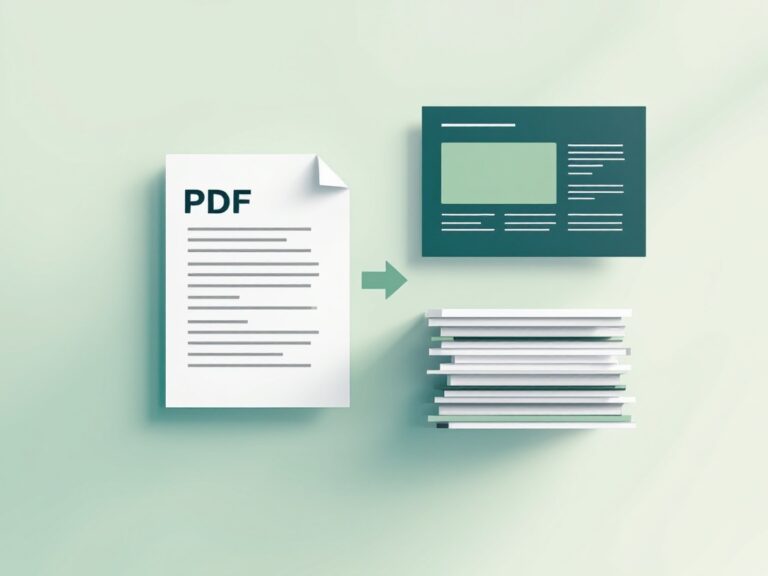
This is the method that reliably works. You turn each page into an image you control, shrink it, and put the PDF back together.
Step 1: Turn the PDF pages into JPGs
Open PDF to JPG, add your file and set Image quality to High (95%). You’ll compress in Step 3, so start from the cleanest copy. Convert and download the page images. Each page becomes its own JPG.
Already have photos of the document instead of a PDF? Skip this step and start at Step 2.
Step 2: Resize each page to 700–800 px wide
Open the Image Resizer, add the page images, type 800 in Width (or 700 for text-heavy pages) and leave Lock aspect ratio ticked. At that width, an A4 page is still readable on screen. Go much lower and small print starts to blur.
Step 3: Compress the images
Open the Image Compressor, choose JPEG as the output format and set the Quality slider to about 60%. The tool shows the new size of each image. Add them up, leave about 5 KB of headroom for the PDF itself, and adjust:
- Over the limit? Drop to 50%, or narrow the width by 100 px.
- Well under? Raise the quality for a sharper result.
Step 4: Combine the images back into a PDF
Open JPG to PDF, add the compressed images in the right order and pick A4 or Letter as the page size (or Fit image to page for no borders). JPGs are embedded as they are, so the PDF ends up roughly the size of your images added together.
Step 5: Check before you upload
Open the new PDF and zoom to 100%. Can you read the smallest text, the signature and any stamps? If something looks blurry, go back to Step 3 and raise the quality by 5–10%. The goal is the clearest file that still fits under the limit.
What fits in 100 KB: tested sizes per page
We measured A4 pages through the same browser JPEG compression these tools use. Sizes are per page:
| Page type | Width | Quality | Size per page |
|---|---|---|---|
| Light page (certificate, ID card, short letter) | 800 px | 60% | about 40–50 KB |
| Light page | 700 px | 60% | about 35 KB |
| Half page of text | 700 px | 60% | about 60–70 KB |
| Full page of small text | 700 px | 50% | about 90 KB |
That means 100 KB realistically holds:
- 1 full page of text, or
- 2 light pages at 800 px, or 3 light pages at 600–700 px, or
- 1 half page plus 1 light page.
Phone scans with grey paper, shadows or grain come out bigger than clean pages, so treat these as best-case numbers and go by the size the tool shows.
Got four or more pages of text? As images, they won’t fit in 100 KB and stay readable. Check whether the portal only needs certain pages, or lets you upload them as separate files. If you have the original Word or Google Docs file, export it straight to PDF: real text takes far less space than a picture of text.
Tips that make a big difference
- Crop before you shrink. Phone scans often include the table, your fingers or a dark border. Cut it with the Crop Image tool so every kilobyte goes to the document.
- Send only the pages they asked for. If the form wants your ID’s front side only, don’t attach the back. Use PDF Split to pull out just those pages.
- Scan in good, even light. Shadows and grain add detail the compressor has to keep, which makes files bigger.
- Keep your original. Compression can’t be undone. Work on a copy so you can start over at higher quality.
Frequently asked questions
Can I compress a PDF to 100 KB without losing quality?
For a text-based PDF, often yes: removing overhead doesn’t change what you see. For a scanned PDF, there’s always some loss, because the images have to get smaller. At the settings above, text stays readable on screen, which is what forms and portals need.
Is it safe to compress ID cards or certificates online?
All the ToolBrainy tools in this guide process files in your browser. Your documents aren’t uploaded to a server, so they never leave your device.
How do I compress a PDF to 200 KB or 500 KB instead?
Same steps, gentler settings. For 200 KB, two full text pages at 700 px and 50–60% usually fit. For 500 KB, you can keep pages at 1000 px and 70% quality, which comes to about 65–110 KB per page depending on how much text is on it.
Can I do this on my phone?
Yes. All four tools work in mobile browsers on Android and iPhone, with nothing to install.
Why is my PDF still over 100 KB after compressing?
Usually because it’s a scanned PDF, and one-click compression only removes structural overhead. Rebuild it with smaller images using Option 2 above. If it’s still too big, it probably has more pages than 100 KB can hold. See the table above.
The short version
PDF to JPG → resize to 700–800 px → compress to JPEG at 50–60% → JPG to PDF → check at 100% zoom. Start with the PDF to JPG converter. Need a photo or signature under a limit instead? See how to resize an image to 20 KB. For more on keeping PDFs light, read how to compress a PDF without losing quality.
Handy tools for this topic
Free online tools, no signup
Every ToolBrainy tool runs right in your browser — no accounts, no watermarks and no limits. Compress a PDF, generate a strong password, convert an image and plenty more.