You hit send, and the email bounces straight back: attachment too large. Or the application form only accepts files under 5 MB and yours is stubbornly sitting at nine. It’s a small thing, but it always seems to land when you’re already in a hurry. The reassuring part: most PDFs can lose 50–80% of their size with no visible drop in quality, once you know what’s actually making them heavy.
Why PDFs get so big
Three things usually account for the bulk of a PDF’s size:
- High-resolution images. A single photo scanned at 600 DPI can be several megabytes on its own. Multiply that across a document and the size explodes.
- Embedded fonts. Full font families embedded in the file add weight, especially with multiple typefaces.
- Uncompressed or duplicated content. Some export tools store images with little or no compression, or repeat the same logo on every page as a separate object.
Because images are almost always the biggest culprit, that is where you get the most savings with the least visible impact.
The fastest fix: compress it online
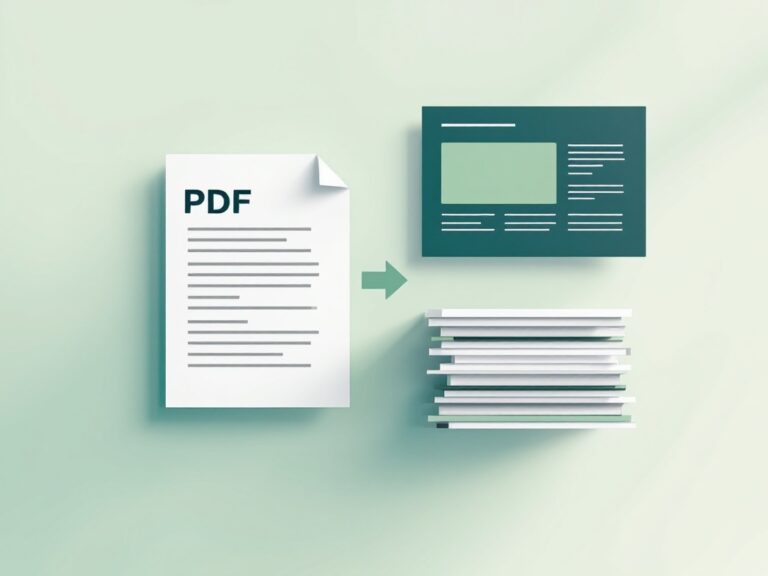
If you just need a smaller file right now, start with a browser-based compressor. Our free PDF compressor rewrites your document to strip out leftover metadata, redundant objects and structural bloat, while leaving text, fonts and images exactly as they were. Because it runs in your browser, your document is not uploaded to a third-party server, a real plus for anything confidential.
That works best on text-based PDFs exported from Word, Google Docs or design tools, which often carry a lot of hidden overhead. Scanned PDFs are different: nearly all of their weight is in the page images, which this tool leaves untouched. For those, shrink the images themselves. Turn the pages into JPGs with PDF to JPG, reduce them with the Image Compressor, then rebuild the file with JPG to PDF. Our guide to compressing a PDF to 100 KB has tested settings for each step.
Compress without losing quality: a practical checklist
- Start from the highest-quality original you have. Never compress an already-compressed file repeatedly; each pass throws away a little more detail. Keep one clean master copy.
- Match the resolution to how the file will be used. For on-screen reading and email, 150 DPI is plenty. Reserve 300 DPI for files that will be professionally printed.
- Remove pages you don’t need. If you only need to send three pages of a 40-page report, split out just those pages first. Our PDF split tool makes this quick.
- Combine, then compress. If you’re merging several files, merge them first and compress once at the end, rather than compressing each piece separately.
- Check the result before you send. Zoom in on any charts, small text, or logos to make sure nothing important turned fuzzy.
When quality loss is actually noticeable, and how to avoid it
Aggressive compression becomes visible in a few specific cases: fine text inside images, screenshots with sharp edges, and diagrams with thin lines. If you notice halos or blurriness around text after compressing, back off the compression level or keep those particular pages at a higher resolution. The goal is the smallest file that still looks clean at 100% zoom, not the smallest file possible.
Questions people ask about PDF size
Does compressing a PDF reduce its quality?
It can, but it doesn’t have to. Image compression is “lossy,” meaning some data is discarded, but at moderate settings the difference is invisible to the eye. Text remains perfectly sharp because it isn’t stored as an image.
What is a good target size for email?
Aim for under 10 MB for general email, and under 5 MB for online forms and job applications, which often have stricter limits.
Is it safe to compress confidential documents online?
With a browser-based tool that processes files locally, your document never leaves your device, so it’s much safer than services that upload to a server. Always check how a tool handles your files before uploading anything sensitive.
Can I undo compression?
No. Compression is one-way. That’s why you should always keep an untouched original copy before you compress.
Before you hit send
Almost all of this comes down to two habits: keep one clean master copy, and compress once at a resolution that matches how the file will really be used. Trim the pages you don’t need, glance at the charts and small text at full zoom, and you’re set. When the file’s ready, run it through our PDF compressor, and if it’s a scan, shrink the page images first.
Handy tools for this topic
Free online tools, no signup
Every ToolBrainy tool runs right in your browser — no accounts, no watermarks and no limits. Compress a PDF, generate a strong password, convert an image and plenty more.